🎁 Template Mode (AI off) — Default
✨ AI Mode (ChatGPT / Claude)
💰 Approximate cost per prompt
| Model | 1 prompt | 100 prompts | Note |
|---|---|---|---|
| GPT-4o mini | ~$0.0002 | ~$0.02 | Cheapest — great default |
| GPT-4o | ~$0.004 | ~$0.40 | Higher quality |
| GPT-4 Turbo | ~$0.012 | ~$1.20 | Legacy, usually skip |
| Claude Haiku 4.5 | ~$0.002 | ~$0.20 | Fast & cheap |
| Claude Sonnet 4.6 | ~$0.006 | ~$0.60 | Balanced sweet spot |
| Claude Opus 4.7 | ~$0.05 | ~$5.00 | Best quality, highest cost |
Recommendation: Start with Template Mode (free). If outputs feel too rigid, turn AI on with GPT-4o mini or Claude Haiku 4.5 — at fractions of a cent per prompt you'd need ~500 prompts to spend $1.
Stop rewriting the same idea eleven different ways. Let the app do it for you.
If you’ve ever tried using more than one AI image or video tool, you already know the frustration. Midjourney wants comma-separated keywords with --style raw. Veo 3 needs a separate Audio section. Nano Banana Pro works best when your on-image text is in quotes. Runway expects a --motion parameter. Every tool has its own syntax, and learning all of them takes time you’d rather spend actually creating.
AI Prompt Engineer ✦ solves that. You describe what you want to make — in plain English, or even in your own language — and the app instantly writes the prompt in the exact format each tool expects. No server. No subscription. No install. Just open it and go.
What You Can Do With This Tool
- Generate polished prompts for 11 AI tools using each tool’s correct syntax
- Create YouTube thumbnails with text, presets, and one-click styles
- Lock a character once and reuse it across every tab — no more inconsistent faces
- Turn a full script into scene-by-scene visual prompts automatically
- Export prompts for 8 tools at once from a single description
- Clean up rough, messy prompts with the built-in Prompt Enhancer
- Type in any language — the Enhancer translates it to professional English
Supported tools: Nano Banana Pro · Ideogram · Midjourney · Adobe Firefly · Stable Diffusion · DALL-E / GPT Image · Kling AI · Google Veo 3 · Runway Gen-4.5 · Luma Ray 3 · Hailuo AI
Template Mode vs. AI Mode — Which One Do You Need?
When you open the app, you’ll see a Use AI toggle in the top-right corner. Here’s what each mode does:
Template Mode (Default — Completely Free)
This is the default. No API key, no setup, no cost — ever. The app uses built-in logic to assemble prompts based on your selections. It works offline, nothing leaves your browser, and the output quality is high enough for most use cases. Start here.
AI Mode (Optional — Bring Your Own API Key)
If you want an extra layer of polish — more nuanced phrasing, better context awareness, or automatic translation from any language — you can connect your own OpenAI or Anthropic API key. The key is stored only in your current browser session and deleted the moment you close the tab. It never touches a server.
Recommended models if you go the AI route:
| Provider | Model | Cost per 100 prompts | Best For |
|---|---|---|---|
| OpenAI | GPT-4o mini | ~$0.02 | Best value, recommended starting point |
| OpenAI | GPT-4o | ~$0.40 | Higher quality output |
| Anthropic | Claude Haiku 4.5 | ~$0.20 | Fast and affordable |
| Anthropic | Claude Sonnet 4.6 | ~$0.60 | Balanced quality and speed |
Bottom line: Template Mode is free forever and works great. AI Mode is an upgrade, not a requirement.
The 8 Tabs — What Each One Does
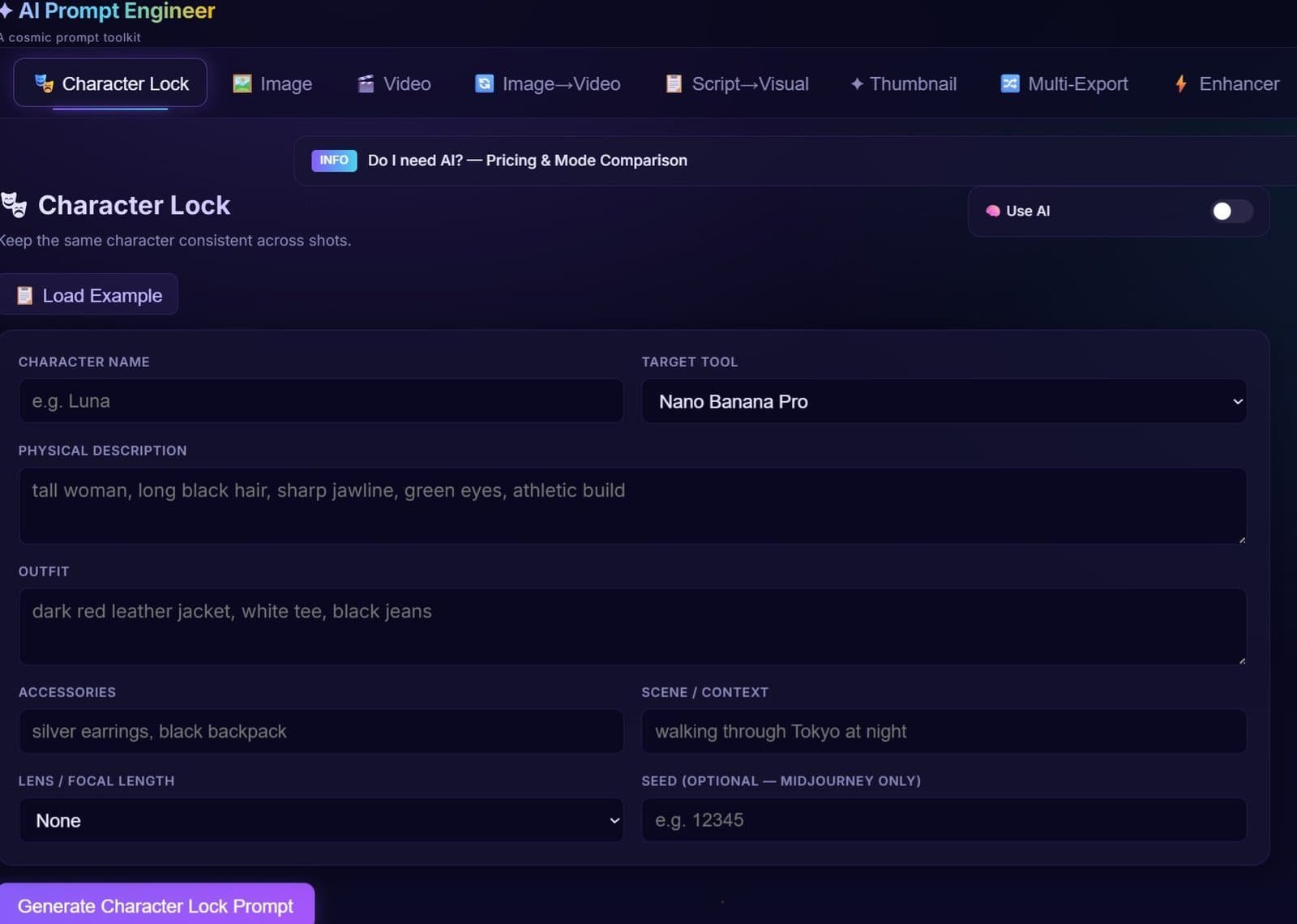
🎭 Tab 1: Character Lock
This tab solves one of the most common problems in AI content creation: you make a character once, love how they look, and then the next image comes out completely different.
Character Lock lets you save a character once and reuse it everywhere.
Fill in your character’s name, physical description, outfit, accessories, and the scene context. Choose a lens style and your target tool. Hit Generate — and the app saves that character to memory. From that point on, every other tab in the app can pull from that saved character with one click.
The output automatically adjusts for the tool you chose. Image tools get a clean descriptive prompt. Video tools (like Veo 3 and Kling AI) add appearance-preservation instructions to prevent the character from drifting as the camera moves.
Who this is for: YouTube series creators, comic artists, brand mascot designers, anyone who needs the same face to appear consistently across multiple pieces of content.
🖼️ Tab 2: Image Prompt
The standard prompt builder for text-to-image generation. Choose your tool, describe your subject, then dial in style, aspect ratio, lighting, lens, and any elements you want excluded.
Every field you fill in gets woven together into the format your chosen tool actually understands. Nano Banana Pro gets --ar, quality flags, and --no text, watermarks automatically appended. Midjourney gets --style raw --q 2 and comma-separated keyword structure. Ideogram gets a structured Style: and Negative: block. Adobe Firefly gets softened, descriptive language. Stable Diffusion gets masterpiece, best quality as a prefix and a separated negative block. DALL-E / GPT Image gets natural language sentences and spatial instructions.
The Negative Prompt field is especially useful here — whatever you type gets converted to the right exclusion format for each tool automatically.
🎬 Tab 3: Video Prompt
Building a video prompt is harder than building an image prompt. You’re not just describing a scene — you’re directing a shot. Camera movement, duration, shot type, audio, pacing — all of it matters, and different tools weight these elements differently.
This tab handles that. Select your tool (Kling AI, Veo 3, Runway Gen-4.5, Luma Ray 3, or Hailuo AI), set your duration, describe the scene, then choose from 13 camera movements, 6 shot types, and 8 lighting styles.
Google Veo 3’s Audio Description field is native to Veo 3’s architecture, so the app always includes it — if you leave it blank, it automatically adds ambient environmental audio. Runway Gen-4.5 gets the --motion 5 parameter appended. Kling AI gets a reference image hint. Hailuo AI gets keyword-style formatting.
🔄 Tab 4: Image → Video
You have a great still image and you want it to come alive. This tab generates the prompt for that specific workflow — turning a static image into motion.
Set your target tool, describe the motion you want, pick camera movement and intensity (Subtle / Moderate / Intense / Maximum), and add any visual style notes.
The standout feature here is the Reinforce Saved Character toggle. When you’re animating an image that contains a character — especially when the camera rotates around them — AI video tools often subtly change the character’s face mid-motion. This toggle pulls your saved character’s description and embeds it directly into the prompt as a hard constraint. If you’ve saved a character in Tab 1, that toggle activates automatically.
📋 Tab 5: Script → Visual
You have a script — maybe a YouTube video script, a short film scene breakdown, or storyboard notes. This tab takes that text and splits it into individual visual prompts, one per scene, automatically.
Paste your script into the text area, choose whether you want image or video prompts for output, select your tool, set your style and lighting, and hit Generate. The app detects scene breaks using standard formats: Scene 1/Scene 2 labels, INT./EXT. screenplay notation, numbered lists, or empty line breaks.
Each detected scene gets its own prompt card with a dedicated Copy button. Toggle on Apply Saved Character to All Scenes and every single prompt card will automatically include your character’s full description — no copy-pasting required.
✦ Tab 6: Thumbnail Prompt ⭐
This is the most important tab in the app, built specifically for YouTube thumbnails. It’s optimized for Nano Banana Pro and Ideogram — the two AI tools that handle on-image text the best.
You control the main subject, the text that appears inside the image (with a live 25-character counter), text position, text style (8 options including Neon Glow, 3D Block Letters, Heavy Impact), text color, lighting, background style, and aspect ratio.
6 Quick Presets — one click fills every field:
| Preset | What It Generates |
|---|---|
| 🎮 Gaming | Gamer with headset, neon pink and blue rim lighting |
| 💰 Business | Sharp professional, emerald and navy tones |
| 🧠 Education | Surprised student expression, high-key lighting |
| 🍜 Lifestyle / Food | Colorful food macro shot, vivid saturated colors |
| 😱 Reaction | Portrait with extreme expression, hands near face |
| 🌌 Space / Cosmos ⭐ | Astronaut + nebula, cosmic rim light, purple and teal glow |
Two power toggles: Contrast Boost adds dark vignette and deep color blocking to make the thumbnail pop in a crowded feed. YouTube Face Mode adds extreme emotional expression cues to maximize click-through rate.
The Random Cosmic Inspiration button generates a complete space-themed thumbnail concept with a pre-written hook text, matched color palette, and full visual brief — perfect for when you need ideas fast.
🔀 Tab 7: Multi-Tool Export
You have one concept. You want to try it across multiple AI tools to see which one gives you the best result. This tab lets you write your description once, select as many tools as you want from a checklist of 8, and generate all the prompts simultaneously — each one formatted correctly for its target tool.
Every output appears as its own card with a color-coded tool badge, a one-click Copy button, and a quick tip line specific to that tool. When you’re done, hit Download as .txt to save all the prompts as a timestamped text file. Over time, that file becomes your own personal prompt library.
⚡ Tab 8: Prompt Enhancer
You have a rough idea — maybe it’s one sentence, maybe it’s in another language, maybe it’s just a few words. This tab turns it into a clean, professional-grade prompt.
Type whatever you have in any language, choose your target tool and your quality goal (Cinematic, Photorealistic, Stylized, or Commercial), and hit Enhance. In Template Mode, the app attaches the right technical modifiers automatically. In AI Mode, it detects your language, translates if needed, and rewrites with context-aware lighting, camera angle, and composition suggestions.
Example: Input astronaut near alien ruins → Output: Astronaut near alien ruins, detailed environment, atmospheric mood. Cinematic lighting, 35mm film grain, shallow depth of field, dramatic composition. Ultra detailed, professional grade. No text, no watermarks. –ar 16:9
Global Features Available in Every Tab
📋 Load Example — Fills all fields with a ready-made space-themed prompt so you can see what a complete output looks like before starting your own.
📇 Use Saved Character — Once you’ve built a character in Tab 1, a button appears in the Image, Video, Image→Video, and Thumbnail tabs. One click pulls that character’s full description into the current prompt.
📋 Copy Button — Every output has a dedicated copy button. Click it and the prompt goes straight to your clipboard. The button turns green and confirms “✓ Copied!” for 1.8 seconds.
💡 Tool Tips — A collapsible Tips section below each output updates automatically based on the tool you’ve selected, showing you the most important things to know about prompting for that specific tool.
📥 Download as .txt (Multi-Tool Export tab) — Export all generated prompts to a timestamped text file to build your own prompt library over time.
Quick Start Guides
From Zero to First Prompt in 60 Seconds
- Open the app and click the ✦ Thumbnail tab
- Click the 🌌 Space / Cosmos preset button — all fields fill in automatically
- Click Generate Thumbnail Prompt
- Click Copy and paste it into Nano Banana Pro or Ideogram
Building a YouTube Series With Character Consistency
- Go to 🎭 Character Lock, fill in your character’s details, and click Generate — the character saves automatically
- Go to 🔄 Image → Video, enable Reinforce Saved Character, and generate your video prompt
- Go to ✦ Thumbnail, click Use Saved Character, and generate your thumbnail prompt
- Go to 📋 Script → Visual, paste your script, enable Apply Saved Character to All Scenes, and generate prompts for every scene at once
Comparing Multiple AI Tools at Once
- Go to 🔀 Multi-Tool Export
- Write your scene description
- Check the boxes for every tool you want to test
- Click Generate — all prompts appear simultaneously
- Click Download as .txt to save them all
FAQs
Do I need to pay anything?
No. Template Mode is completely free with no usage limits. AI Mode requires your own API key if you want it, but it's entirely optional.
Is my API key safe?
Yes. Your API key is stored only in your current browser session (sessionStorage) and deleted automatically when you close or refresh the tab. It is never sent to any server other than OpenAI or Anthropic directly.
Does it work offline?
Template Mode works fully offline once the page is loaded. AI Mode requires an internet connection to reach the OpenAI or Anthropic API.
What if AI Mode fails?
If the API call fails for any reason — wrong key, network issue, rate limit — the app automatically falls back to Template Mode and generates a prompt anyway. You won't get a blank output.
Can I type in a language other than English?
Yes. The Prompt Enhancer tab accepts any language. In AI Mode, it translates and rewrites automatically. In Template Mode, it attaches quality modifiers to whatever you typed.
Does this work on mobile?
Yes. The app is fully responsive. The tab bar scrolls horizontally on smaller screens with arrow buttons to help navigate.
Start Creating
Most AI prompt guides teach you what good prompts look like. This app just writes them for you. Whether you’re building a YouTube channel, designing marketing visuals, producing short films, or just experimenting with AI tools for the first time — AI Prompt Engineer ✦ removes the technical barrier between your idea and the finished image or video.
Try it free. No account. No install. Just open and create.
Built for creators. Powered by The Universe Episodes.